注: 建议图片大小150px*50px
Views: 0 Author: Site Editor Publish Time: 2026-09-08 Origin: Site
The modern workplace relies heavily on dynamic, real-time communication networks to keep operations running smoothly. Organizations often struggle with internal communication silos, inefficient space utilization, and inconsistent visitor experiences. These operational bottlenecks lead to disengaged employees and daily friction across departmental workflows. Relying on legacy communication methods fails to capture attention in environments where staff are already saturated with digital noise. Implementing a structured, cross-departmental approach to evaluating and deploying digital signage for corporate offices solves these exact challenges. Success requires treating the display network as critical infrastructure. Hardware, software, and IT security must align perfectly to create a functional ecosystem. When executed correctly, this technology transforms physical office spaces into interactive, data-driven environments that actively support daily operations.
Hardware and software must be evaluated as a unified ecosystem; mismatched components lead to integration failures and inflated maintenance costs.
Successful deployment requires strict cross-departmental alignment among IT, HR, Facilities, and Internal Communications.
Network security and compliance (e.g., SOC 2, VLAN segmentation) are non-negotiable prerequisites for enterprise-grade digital signage.
Corporate communications teams battle low open rates on company-wide emails daily. Critical announcements get buried in crowded inboxes. Transitioning these messages to high-visibility screens guarantees information delivery to both desk-bound and deskless employees. Strategic placement ensures staff absorb key updates during natural breaks in their day, such as while waiting for an elevator or getting coffee. Viewing distances dictate screen size; a 55-inch display provides legible standard text from approximately 15 feet away, making it ideal for standard hallways.
A well-planned corporate digital signage strategy actively promotes company culture, core values, and internal marketing campaigns. Recognizing employee achievements, celebrating milestones, and highlighting departmental successes fosters a unified identity. This visual reinforcement bridges the gap between isolated teams and builds a cohesive workplace environment. Content zoning allows multiple messages to display simultaneously. A main zone can loop a corporate video while a side ticker pulls live RSS feeds from the company intranet.
Organizations must establish measurable success criteria to track engagement. Metrics move beyond simple screen uptime. Track message retention rates through periodic employee surveys. Monitor event participation metrics before and after promoting activities on the screens. Establish direct employee feedback loops using QR codes displayed alongside announcements to gauge actual engagement levels. When an employee scans a code to RSVP for a town hall, the system logs a direct interaction.
Navigating a large corporate campus intimidates guests, contractors, and new hires. Confusing layouts lead to late meetings and constant interruptions for front-desk staff. Digital wayfinding solutions streamline this entire process. Interactive maps allow users to search for specific people, departments, or amenities, generating immediate, customized routes. Capacitive touch screens offer a flat-glass aesthetic and superior durability compared to older infrared touch frames, which can register false touches in direct lobby sunlight.
Modern display networks integrate directly with existing visitor management systems and lobby check-in protocols. When a guest registers at a kiosk, the system automatically triggers personalized welcome messages on adjacent screens. It displays specific safety protocols or non-disclosure agreement reminders based on the visitor type. Integrating barcode or RFID scanners into the kiosk hardware allows returning contractors to scan their badges for instant access, bypassing the receptionist entirely.
Ghost meetings—where a room is booked but remains empty—waste valuable real estate. Deploying an interactive display for conference room management directly addresses this issue. These panels mount outside meeting spaces, displaying current status via clear red or green LED indicators. Employees instantly see availability from down the hallway, eliminating the need to interrupt ongoing sessions to check if a room is free.
These interactive panels allow staff to book, extend, or release rooms directly at the door. If a scheduled meeting fails to check in within a designated timeframe, the system automatically releases the room back into the available pool. Tracking this real-time desk and room availability provides facilities managers with hard data. They analyze usage patterns to optimize the commercial real estate footprint. Installation relies heavily on Power over Ethernet Plus (PoE+ or 802.3at) standards, allowing a single Cat6 cable to deliver both network data and electrical power to the panel.
Purchasing consumer-grade televisions for office deployments guarantees rapid hardware failure. Consumer panels lack the thermal management required for continuous operation, leading to overheating and severe image retention. Deploying a consumer TV in a commercial setting immediately invalidates the manufacturer's warranty. IT departments cannot remotely manage consumer screens because they lack essential enterprise control protocols like RS232 or IP control. Employees manually change inputs or turn off screens, breaking the communication loop.
Evaluating a true commercial advertising display involves checking its operational lifespan rating, which guarantees tens of thousands of hours of continuous use. Brightness ratings, measured in nits, differentiate the two categories. Standard office lighting washes out consumer TVs, which output around 250 nits. Commercial displays offer 500 to 700 nits for standard indoor use, ensuring crisp readability under harsh fluorescent lights.
Feature | Consumer TV | Commercial Display |
|---|---|---|
Duty Cycle | 8 hours / 5 days | 16/7 or 24/7 continuous operation |
Brightness | 250 - 300 nits | 500 - 3000+ nits |
Control Protocols | IR Remote only | RS232, LAN (RJ45), IP Control |
Thermal Management | Basic venting | Fanless heat sinks, robust cooling |
Orientation | Landscape only | Portrait and Landscape supported |
Hardware selection must match the physical environment and the intended audience behavior. Deploying a wall-mounted advertising display works best in high-traffic, high-dwell-time zones. Cafeterias, breakrooms, and elevator banks serve as ideal locations. In these areas, employees have the time to consume longer-form content, watch corporate videos, or read detailed HR announcements. Mounting these screens requires commercial-grade articulating arms to allow technicians easy access to the media players and cabling hidden behind the display.
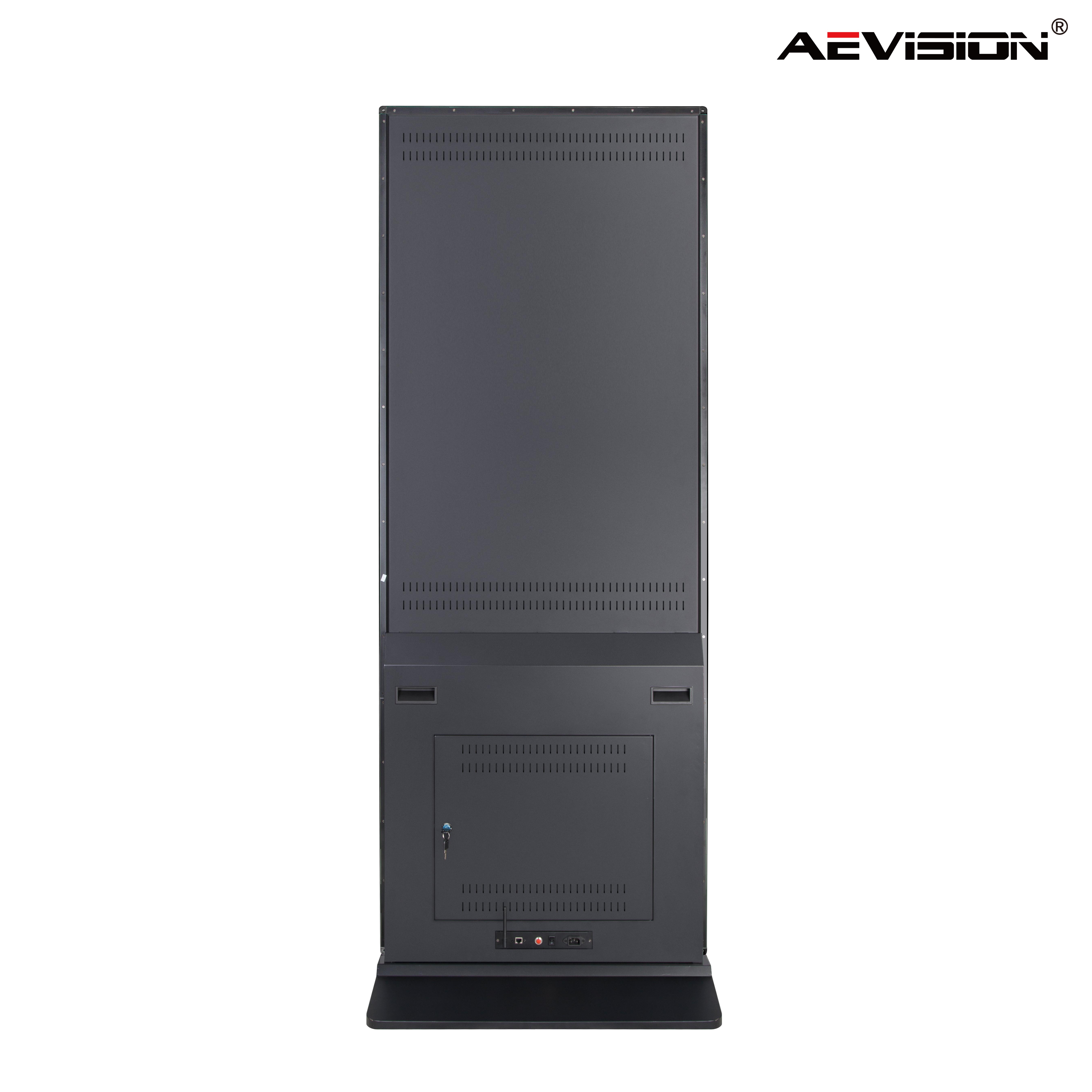
Freestanding kiosks belong in lobbies and main transition corridors. These units invite physical interaction for wayfinding, directory assistance, or visitor check-in. Their vertical orientation naturally accommodates lists and maps, making them highly intuitive for users searching for specific information. Kiosks require heavy steel base plates to prevent tipping hazards in busy public spaces.
For meeting spaces, small-form-factor interactive panels ranging from 10 to 15 inches serve as the standard. Selecting models that support PoE drastically simplifies installation. This eliminates the need to hire electricians to pull new high-voltage power lines to every single meeting room door. The panels mount directly to mullions (the aluminum frames between glass panes) using specialized adhesive brackets, keeping the glass clean and wire-free.
The foundation of any display network is the Content Management System. Organizations decide between cloud-based (SaaS) and on-premise architectures. Cloud-based systems offer superior agility. Administrators manage screens across multiple global locations from a single web browser. Updates push instantly, and the vendor handles all server maintenance and feature upgrades. Media players cache content locally, ensuring screens continue to play their scheduled loops even if the local internet connection drops.
Highly regulated industries often require on-premise solutions. This architecture keeps all data behind the corporate firewall, providing absolute control over information security. When evaluating on-premise systems, IT teams assess enterprise network compatibility, server hosting requirements, and internal maintenance bandwidth. Data sovereignty laws in certain regions dictate where cloud servers physically reside, forcing multinational corporations to deploy hybrid architectures to remain compliant.
A standalone CMS requiring manual data entry quickly becomes a burden. The system must sync seamlessly with existing corporate infrastructure. Native integrations with Microsoft 365, Google Workspace, and communication platforms like Slack allow the screens to automatically pull calendar data, internal chat announcements, and directory updates. Authentication relies on SAML 2.0 protocols, enabling Single Sign-On (SSO) through providers like Okta or Azure AD for secure user access.
Connecting the CMS to business intelligence tools transforms screens into live data dashboards. Sales teams view real-time metrics, while manufacturing floors monitor production quotas via secure JSON or XML feeds. The software must support automated content triggers. Integrating with the Common Alerting Protocol (CAP) ensures that in the event of an emergency, all screens instantly override scheduled content to display critical evacuation routes or safety instructions.
Even the best hardware fails if the content is illegible. Establishing strict visual hierarchies and high contrast ratios is mandatory. Designers apply the 3x5 readability rule for optimal office digital signage viewing: use a maximum of three lines of text with five words per line, or five lines with three words per line. This ensures messages are absorbed instantly by people walking past the screens. Content must be rendered in native 1080p or 4K resolutions to prevent pixelation on large-format displays.
Passive content yields passive results. Incorporating clear Calls-to-Action drives user interaction. Add scannable QR codes to screens for immediate action. Employees scan the code to complete HR surveys, enroll in benefits, or sign up for company events directly from their mobile devices. This bridges the gap between physical screens and digital workflows.
Managing content across hundreds of screens requires decentralized workflows. Utilizing role-based access control (RBAC) allows administrators to assign specific permissions. Department heads update their own specific zones on the screen without altering the master layout. AI automation tools within the CMS dynamically schedule content based on time of day, audience demographics, and strict adherence to corporate branding guidelines, preventing off-brand designs from reaching the screens.
Scaling a deployment across multiple regional headquarters and satellite offices requires rigorous architectural planning. Organizations design a pilot program that serves as a blueprint for global expansion. This blueprint defines standard operating procedures for hardware procurement, network configuration, and content governance. Standardizing on a specific operating system—whether Android, WebOS, Tizen, or Windows—ensures the CMS behaves identically across all endpoints.
Adapting deployment strategies for smaller satellite offices maintains a consistent corporate culture. While a flagship headquarters features massive video walls and custom interactive kiosks, a regional sales office might only need two standard displays. The underlying CMS and media player hardware remain identical across all locations. Internal communications teams push a single message globally without worrying about formatting errors on different screen types.
Standardizing hardware and media players simplifies IT support dramatically. Helpdesk technicians troubleshoot issues using a unified set of documentation. Firmware updates are tested once and deployed universally via Mobile Device Management (MDM) platforms. IT tracks MAC addresses for every player, allowing them to execute remote reboot relays if a screen freezes. This approach minimizes downtime and reduces the need for specialized local IT contractors.
Connecting dozens of media players to a corporate network introduces significant security vulnerabilities. Unpatched media players running outdated operating systems serve as easy entry points for malicious actors. Unauthorized screen hijacking causes immediate reputational damage. Unencrypted network traffic between the CMS and the players exposes internal data feeds to interception.
Mitigating these risks requires strict IT protocols. Mandating VLAN segmentation isolates the display network from critical corporate servers. If a screen is compromised, the attacker cannot pivot to sensitive databases. Require software vendors to provide SOC 2 Type II compliance reports, verifying their data security practices. Enforce 802.1x port authentication to ensure only authorized media players can connect to the network switches. Disable all unused USB ports on the displays to prevent physical tampering.
Physical deployment carries its own set of operational risks. Poor screen visibility due to glare or improper mounting height renders the investment useless. ADA (Americans with Disabilities Act) non-compliance regarding screen protrusion poses legal and safety risks. Screens mounted in hallways cannot protrude more than four inches from the wall if the bottom edge is above 27 inches from the finished floor. Exposed wiring looks unprofessional and creates tampering hazards.
Conducting comprehensive physical site surveys before purchasing hardware prevents these issues. Assess ambient lighting, wall structural integrity, and pedestrian traffic flow. Install plywood backing inside the walls during construction to support heavy commercial displays. Utilize recessed power boxes (such as the Chief PAC525) behind the screens to hide all electrical outlets and media players. Ensure conduit sizing meets a 1.5-inch minimum to accommodate HDMI and Cat6 cables with adequate pulling clearance.
The most common cause of failure in internal communication networks is the stale content trap. When screens display the same announcement for months, employees develop screen blindness. They learn to actively ignore the displays, assuming the information is always outdated. Once trust in the medium is lost, regaining employee attention is incredibly difficult.
Preventing screen blindness requires strict governance. Assign clear departmental content ownership. Establish mandatory expiration dates for all uploaded media within the CMS, ensuring old announcements automatically disappear. Heavily rely on automated data feeds—such as live transit schedules, weather, news tickers, and KPI dashboards—to keep the messaging dynamic and fresh without requiring daily manual intervention. Set up fallback RSS feeds so the screen always has something new to display even if the primary content creator misses a deadline.
To move forward with your deployment, execute these specific next steps:
Form a cross-functional buying committee including representatives from IT, HR, Facilities, and Corporate Communications to define technical requirements.
Document specific, measurable departmental use cases and identify the exact data feeds required to support them.
Define strict network security requirements, including VLAN architecture and compliance mandates, before evaluating software.
Request a 30-day Proof of Concept (POC) trial from two shortlisted vendors to test hardware reliability and CMS usability in your actual office environment.
A: The best solution combines commercial-grade hardware with a cloud-based CMS that integrates natively with your existing tools like Microsoft 365 or Google Workspace. It must offer enterprise-level security, role-based access control, and automated data feeds to keep content fresh without manual daily updates.
A: No. Consumer TVs are designed for a few hours of daily use. In a corporate environment, they suffer from burn-in, lack necessary thermal management, and fail quickly. Using them commercially also voids their warranties and prevents IT from utilizing remote management protocols like RS232.
A: Commercial displays are engineered for continuous operation. They feature advanced cooling systems, higher brightness levels to combat office glare, locked-out physical buttons to prevent tampering, and robust control inputs for centralized IT management.
A: Secure management requires a CMS with role-based access control, allowing users to edit only specific zones. Network security is maintained by isolating media players on a dedicated VLAN, enforcing SOC 2 compliance, and using Mobile Device Management for automated security patching.
A: Yes, enterprise-grade interactive room panels integrate directly with Microsoft Teams, Zoom Rooms, and Google Workspace calendars. They pull real-time booking data, display room availability instantly, and allow employees to schedule or release rooms directly from the touchscreen interface.
A: A high-quality commercial display typically lasts between 50,000 to 100,000 hours of continuous use. This translates to roughly 5 to 10 years of reliable operation in a 24/7 environment, provided it is installed with proper ventilation and maintained correctly.